How to put Not THAT Button! on your TV
Not THAT Button! plays out on a big screen: the questions, the clock, the scores and the host all appear there, and everyone answers on their own phone. Any screen the whole room can see will do. Here are the ways to set one up.
A smart TV's web browser
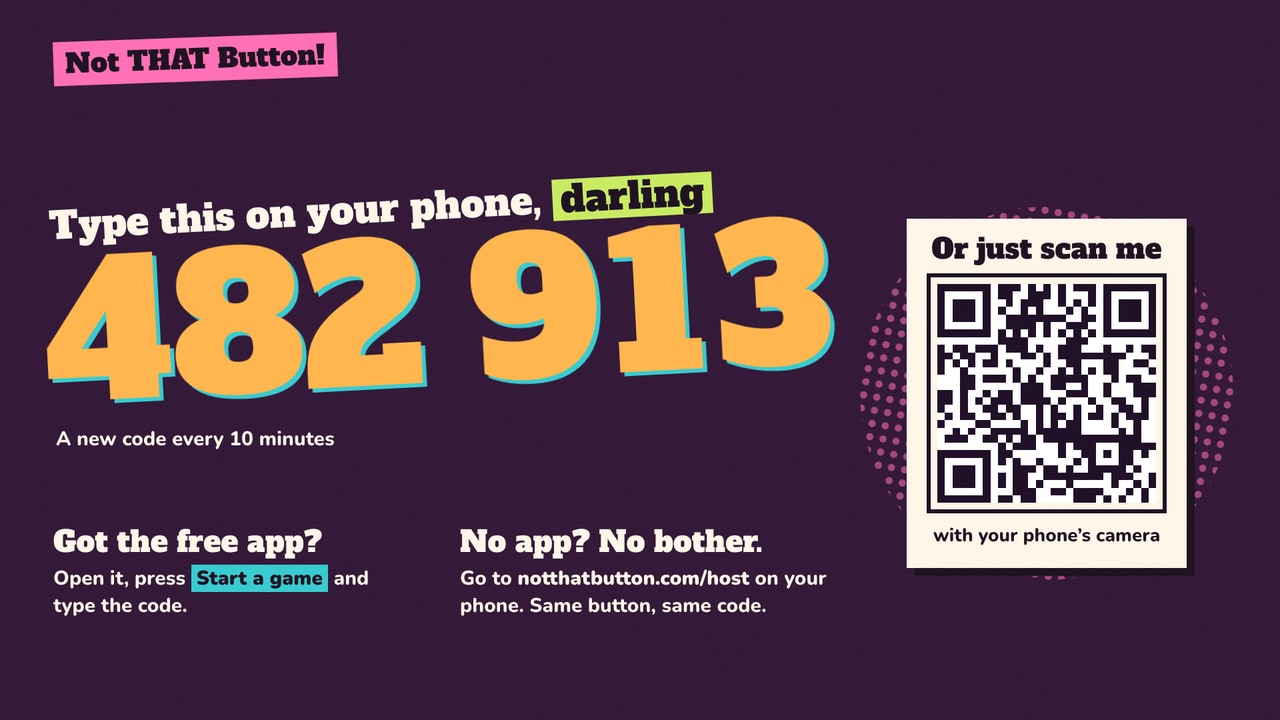
Most smart TVs have a web browser. Open it and go to notthatbutton.com/tv. The big screen shows a six-digit code and a QR code, and waits for the host's phone.
This is the simplest set-up: nothing to install on the TV, and nothing plugged in.
A laptop, plugged into the TV
If your TV's browser is slow, or it doesn't have one, use a laptop:
- Plug the laptop into the TV with an HDMI cable.
- Open notthatbutton.com/tv in the laptop's browser.
- Make it full screen (F11 on Windows, or Control-Command-F on a Mac).
- Plug the laptop into the mains, so it doesn't go to sleep mid-game.
A laptop on its own works too, if everyone can gather round it.
The game on Steam
If you have the game on Steam, the computer is the big screen. Run it on a PC connected to your TV, press Start a game, and the room opens straight away: there's no code to pair.
Pairing the host's phone
With the big screen showing its code:
- The host opens the free app and presses Start a game.
- They type the six-digit code, or scan the QR code on the big screen.
- The big screen says "All set, darling" and opens the room.
No app on the host's phone? Go to notthatbutton.com/host in the phone's browser: same button, same code.
Before friends arrive
- Turn the sound up. The host talks, and there's music and the odd explosion.
- Check the internet. The big screen and every phone need a connection.
- Get everyone the free app. It turns each phone into a buzzer that buzzes in your hand, and keeps the screen awake.
Play Not THAT Button!
The questions play out on the big screen. Everyone buzzes in on their own phone.